
Plan the layout before the content
A clear layout keeps every message in its place. CAYIN Skin Editor lets you divide one screen into zones for video, web pages, images, clocks and tickers, save the design as a skin file and upload it to your SMP players.
-
Start from a template
Pick one of the skin templates that come with the tool and adapt it, so you never draw a layout from nothing.
-
Place every zone freely
Set the position and size of each zone to fit any screen resolution or aspect ratio.
-
Design your own clock
Create a clock style that matches your brand and add it to any layout.
How it works
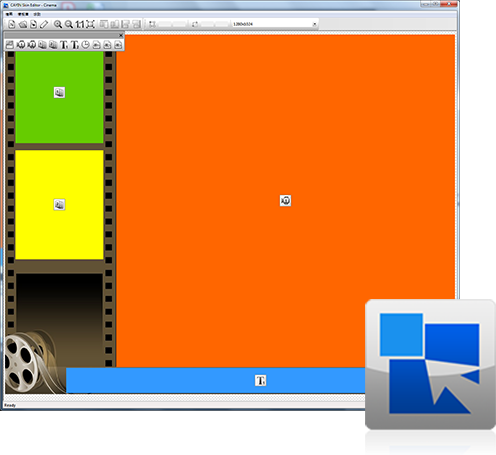
How it works. Step one, choose a skin template. Step two, add video, web page, image, clock and ticker zones and set where each zone sits and how large it is. Step three, save the layout as a skin file and upload it to your SMP player, which plays it on screen.
Choose a template
Open Skin Editor and pick a skin template that fits your screen.
Arrange the zones
Add video, web page, image, clock and ticker zones, then set where each zone sits and how large it is.
Upload to your player
Save the layout as a skin file, upload it to your SMP player and use it in your content.
System requirements
Windows OS
Install CAYIN Skin Editor on any Windows computer.
One or two screens
One skin covers one screen or two screens in extended mode. For three or more screens, use the SMP Web Manager.
10 interface languages
Choose the language you prefer when you download the installer.
Frequently asked questions
What is CAYIN Skin Editor?
It is a free Windows tool for designing multizone layouts, called skins, for CAYIN SMP digital signage players.
Is Skin Editor free?
Yes. You can download and use CAYIN Skin Editor for free.
Which zone types can I add?
You can add video, web page, image, clock and ticker zones. Each zone can be placed and sized freely, and you can design your own clock style.
Which CAYIN players support skins made with Skin Editor?
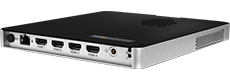
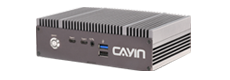
SMP-8100, SMP-2400 and SMP-2200 players support skins made with Skin Editor.
How many screens can one skin cover?
One skin can cover one screen or two screens in extended mode. For three or more screens, create the layout in the SMP Web Manager.
Which operating system and languages does it support?
Skin Editor runs on Windows OS. The interface is available in English, Traditional Chinese, Simplified Chinese, Japanese, Spanish, French, German, Italian, Polish and Thai.




Not sure which one to choose?
We help you plan the right digital signage solution. Send us an enquiry >
Choose the interface language