

Stop hunting for IP addresses
Every extra SMP player or CMS server on the network means one more IP address to track down. CAYIN Device Seeker scans your local network and lists every CAYIN device it finds, so you can jump straight to managing it.
-
Open it instantly
Jump straight to any device's CMS or SMP management page in one click.
-
Update on the spot
Click Open Folder to reach a device's network content folder directly and push new content the moment it's ready.
-
Install and go
Set it up on any Windows computer on the network, no setup steps standing between you and your devices.

How it works
Scan your network
Open Device Seeker and it searches your local network for every SMP player and CMS server automatically.
Pick a device
Every device found shows up in the list by name, with no IP address to look up or write down.
Open Web or Open Folder
Click Open Web to manage the device remotely, or Open Folder to upload and update its content directly.
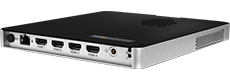
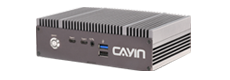
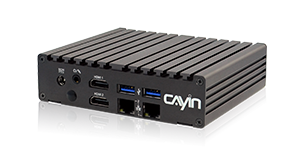


System requirement
CAYIN Device Seeker runs on Windows OS. Install it on any Windows computer connected to the same local network as your SMP players and CMS servers.
Frequently asked questions
What is CAYIN Device Seeker?
It is a Windows utility that scans your local network and lists every CAYIN SMP player and CMS server it finds, so you don't have to keep a table of IP addresses.
What can I do with a device once Device Seeker finds it?
Click Open Web to open that device's web-based management page in your browser, or click Open Folder to open its network content folder directly for uploading and updating content.
Which operating system does Device Seeker run on?
Device Seeker runs on Windows OS.
Does Device Seeker need internet access?
No. It searches within your local network (LAN), so it works without an internet connection as long as your computer and the CAYIN devices are on the same network.
Which CAYIN products does Device Seeker detect?
It detects CAYIN SMP digital signage players and CMS content management servers on the same local network.





Not sure which one to choose?
We help you plan the right digital signage solution. Send us an enquiry >