 Back to FAQ Center
Overview
YouTube has recently made changes to its platform that may affect how YouTube playlists are rendered in web-based playback environments. CAYIN Technology has proactively identified and tested a configuration approach that ensures continued stable and smooth playback on CAYIN devices.
The recommended approach involves splitting YouTube playlists into individual video URLs and inserting short image clips between each video. This allows the system to release web memory efficiently and maintain uninterrupted playback.
Applicable Devices and Firmware Versions
Please ensure your devices are running the minimum required firmware versions listed below before applying this configuration.
| Device | Minimum Firmware Version |
|---|---|
| SMP Players | 4.0 build 25336 or above |
| CMS Server | 11.0 build 25336 or above |
| CMS-WS Server | 1.0 build 25336 or above Requires CAYIN Signage Player App running on an Android device with at least 2GB RAM. |
Applicable Conditions
Each individual YouTube video used in this configuration should not exceed one hour (3,600 seconds) in duration.
NOTE!
For video content longer than one hour, please use the original video file and upload it directly to the SMP Player for stable local playback. See Additional Notes below.
Configuration Steps: YouTube
Convert each video in your YouTube playlist into a standalone URL by removing the playlist parameters from the address.
STEP 1 : Open your YouTube playlist and click on each video. Copy the URL from the address bar into a text file.
STEP 2 : Remove everything from &list= onward. Keep only the individual video URL.
Example:
Before:
https://www.youtube.com/watch?v=u9lj-c29dxI&list=PL6B3937A5D230E335&index=1
After:
https://www.youtube.com/watch?v=u9lj-c29dxI
STEP 3 : Repeat for all videos in the playlist and save the list of individual URLs.
Configuration Steps: Device (SMP Example)
STEP 1 : Log in to the SMP Web Manager.
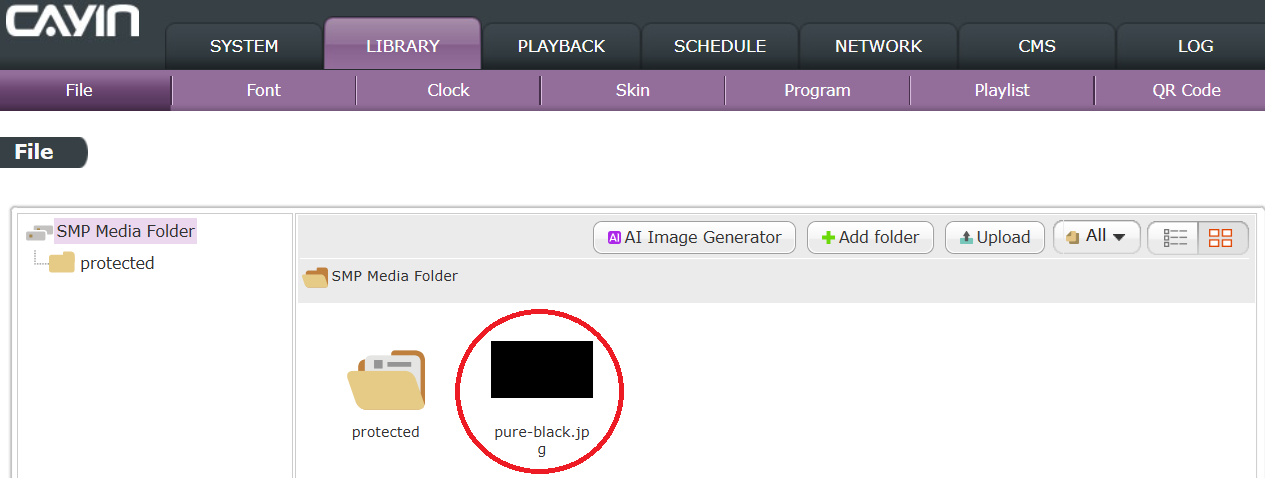
STEP 2 : Prepare a placeholder image: Go to Library > Files and upload an image (e.g., a solid black image) to use as a buffer between videos.
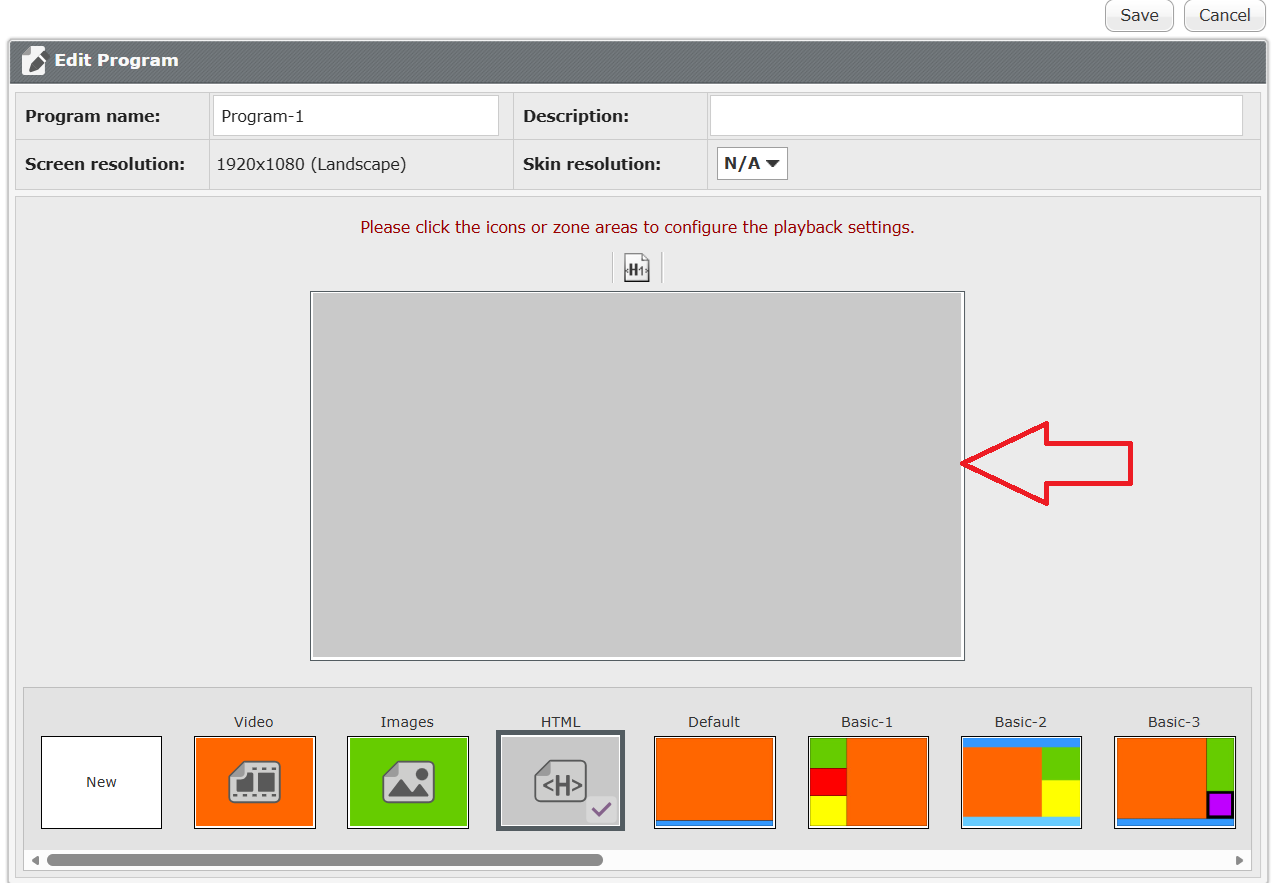
STEP 3 : Create a program for each video: Go to Library > Programs, click Add a Program, select HTML, then click the grey area to begin editing.
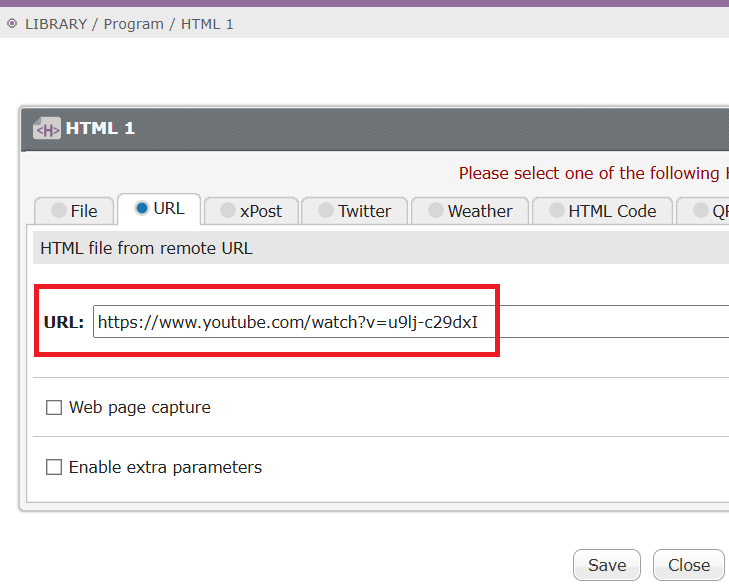
STEP 4 : Click URL, paste the individual YouTube video URL prepared in the YouTube configuration steps, then click Save to complete the program.
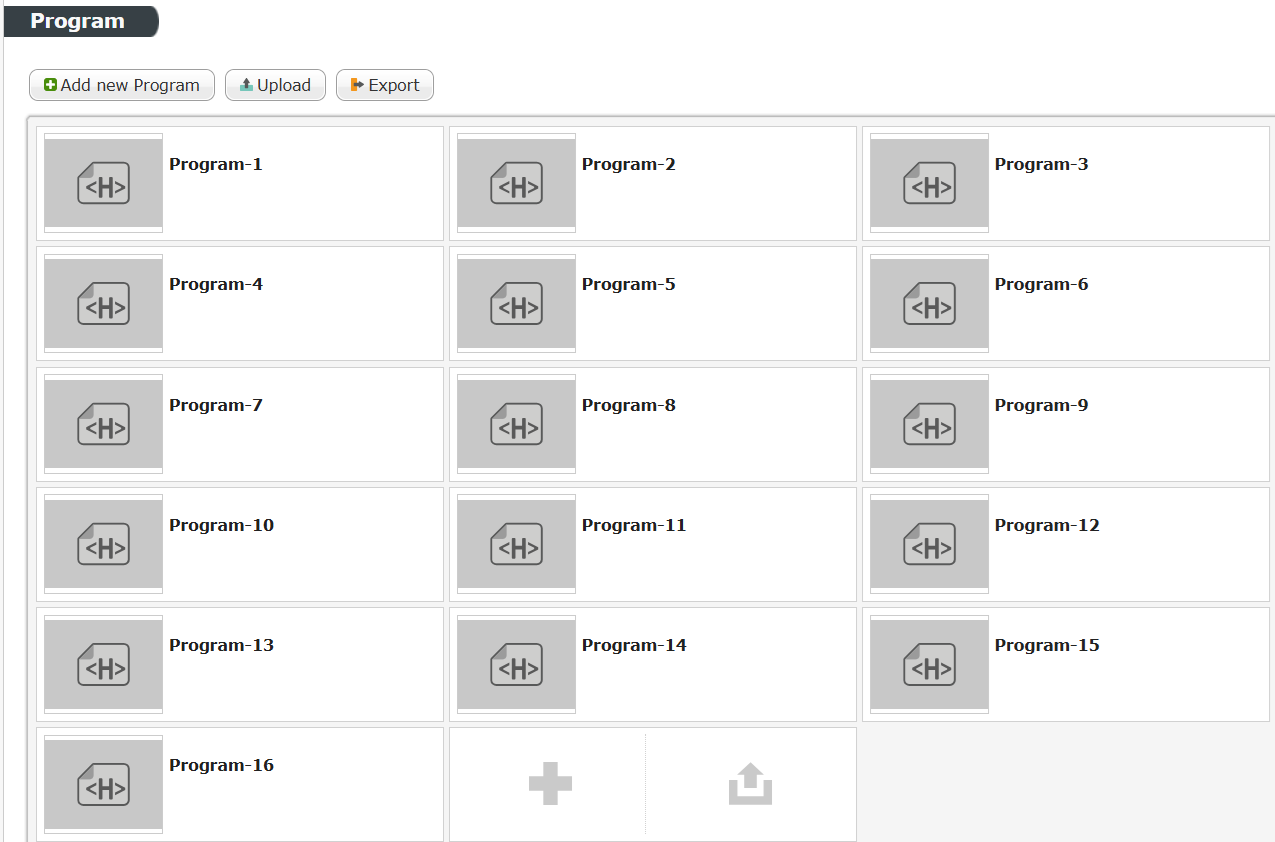
STEP 5 : Repeat Steps 3 and 4 for each video until all YouTube videos have been created as individual programs.
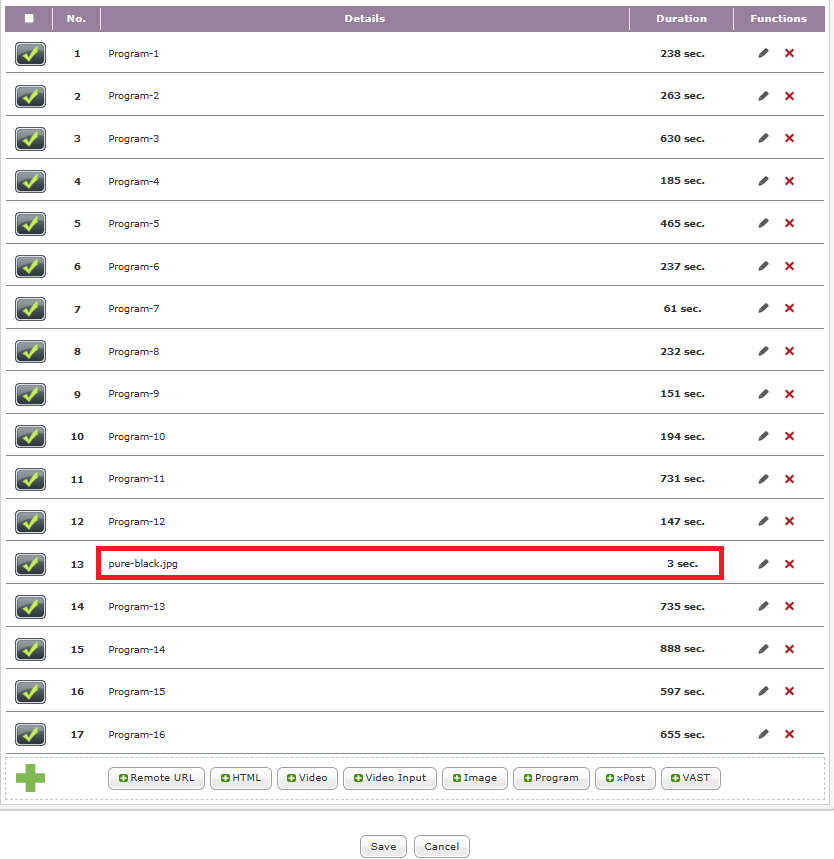
STEP 6 : Create a playlist: Go to Library > Playlists, click Add a Playlist, select General mode, then add the programs created in Step 5 one by one. Enter the actual playback duration for each video manually, then click the checkmark to save.
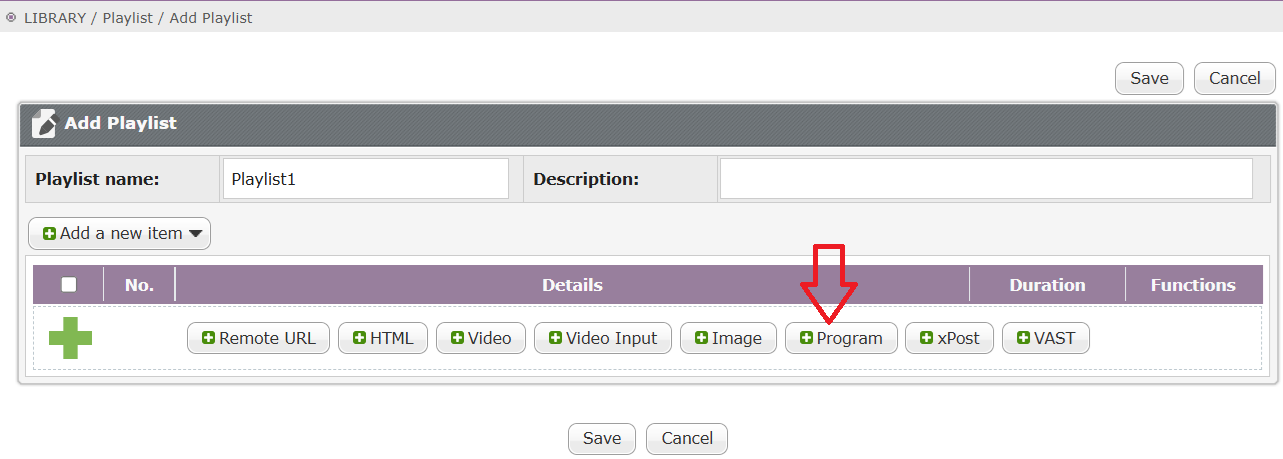
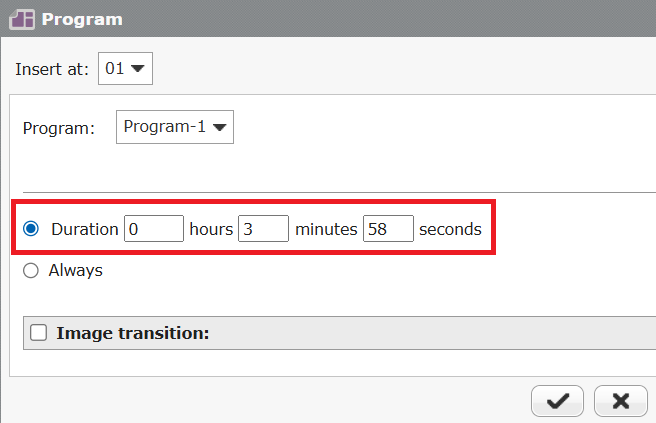
STEP 7 : When the cumulative playback time approaches one hour (3,600 seconds), pause adding programs and insert a placeholder image: click Image, select the image uploaded in Step 2, set a short duration (e.g., 3 seconds), and save.
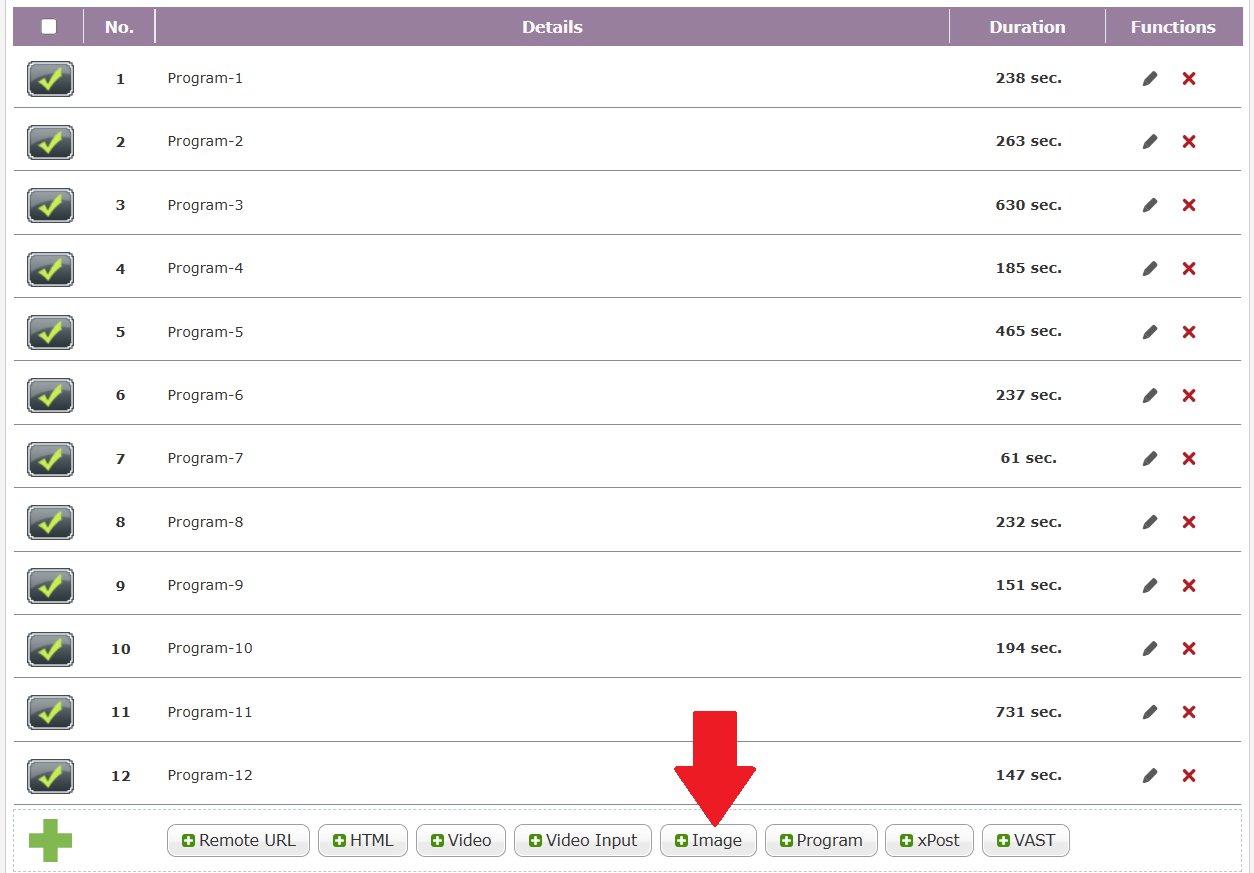
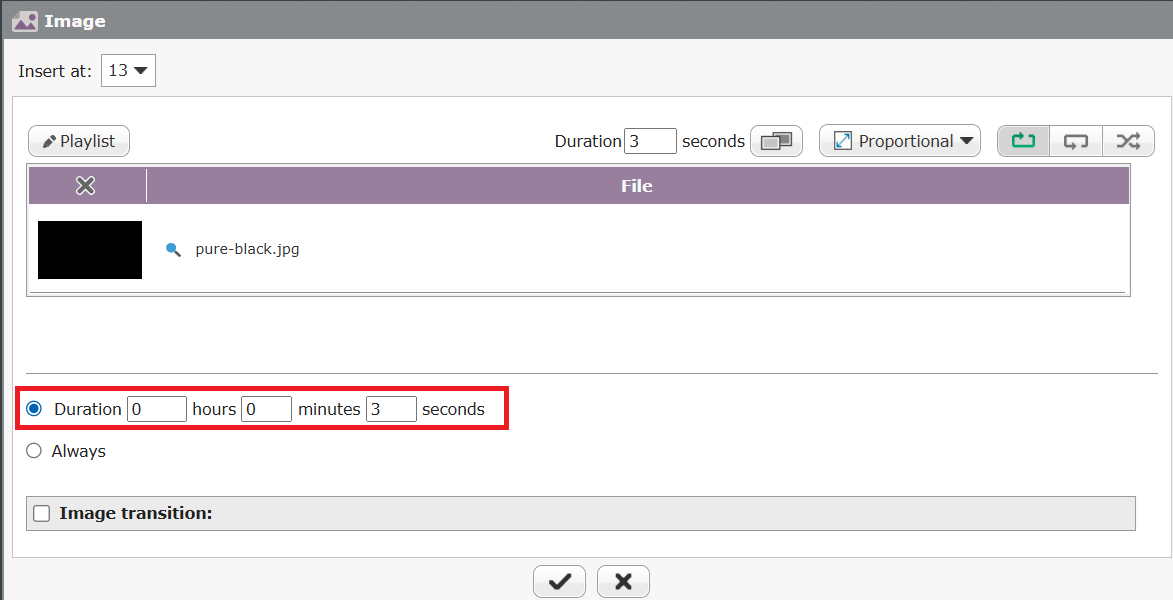
STEP 8 : Continue alternating between adding programs (Step 6) and inserting placeholder images (Step 7) until all videos have been added to the playlist. Click Save to finalize.
Start Playback
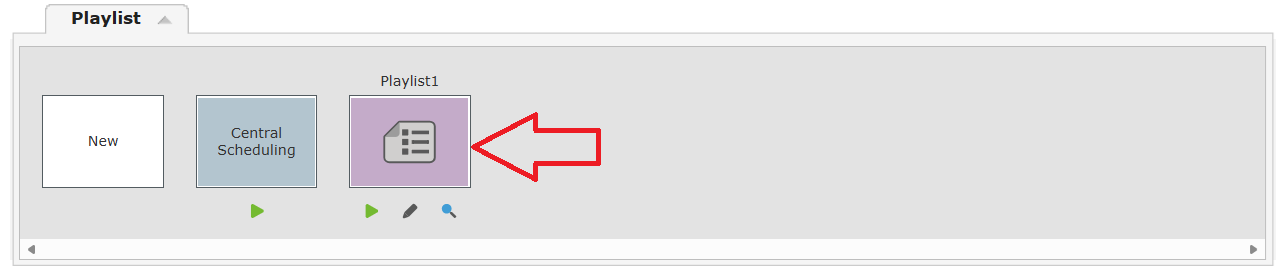
STEP 1 : Go to Playback > Playlists, select the playlist created in the previous steps, and begin playback.
Additional Notes
If a single video exceeds one hour in duration, playing it via the web-based URL method described above may still cause memory to accumulate gradually on the playback device, which can eventually trigger an error.
For video content longer than one hour, CAYIN recommends using the original video file and uploading it directly to the SMP Player. Play it as a standard local video file to ensure stable, uninterrupted system performance.